How to read and extract data from PDF files
In an ideal world, your dataset would arrive in a clean CSV, Excel file, or JSON format — structured, machine-readable, and ready for analysis in Python. In reality, valuable data from governments, financial reports, and private companies is often locked inside PDF tables.
Extracting structured data from PDFs can be frustrating. PDFs are designed for presentation, not data analysis. They don’t “understand” tables — they simply store text positioned on a page. That means rows and columns are visual constructs, not structured objects.
While you can manually copy and paste data, that approach is time-consuming and error-prone. A better solution is to extract tables programmatically using Python. In this guide, you’ll learn how to use the Camelot Python library — alongside pandas — to extract, clean, and export tables from PDF files.
What Is the Camelot Python Library?
Camelot is a Python library designed specifically for PDF table extraction. It detects tabular structures in text-based PDFs and converts them into structured data that can be analyzed using pandas.
Camelot works best with text-based PDFs, not scanned images. To check whether your file is compatible, open it and try selecting text with your cursor. If you cannot highlight text, the file is likely scanned and will require Optical Character Recognition (OCR) before extraction. Tools like Adobe Acrobat OCR can convert scanned PDFs into machine-readable text.
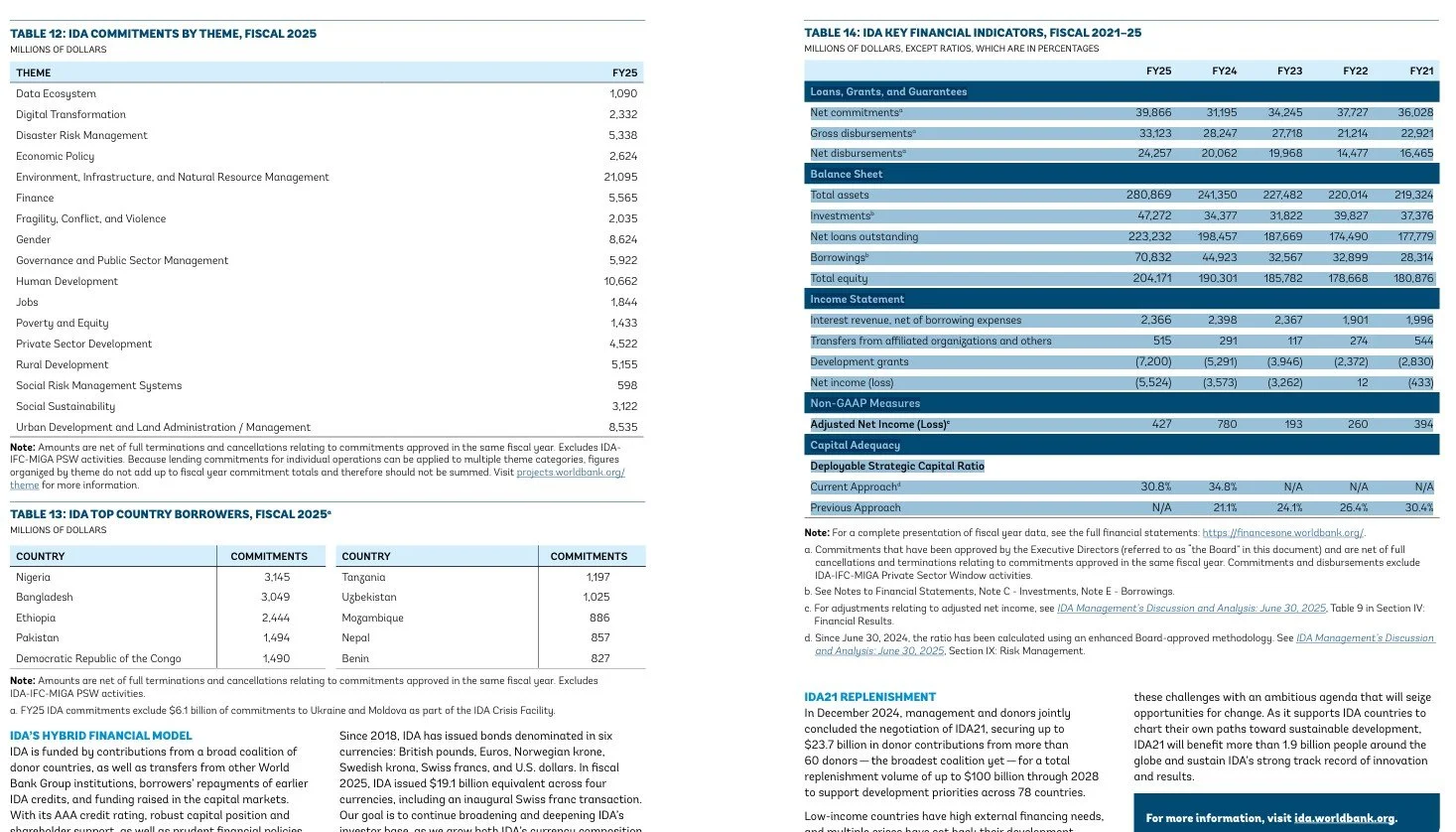
How Camelot Detects Tables
Camelot uses two parsing methods (called flavors):
Lattice – Best for tables with visible gridlines or cell borders.
Stream – Best for tables separated by whitespace rather than borders.
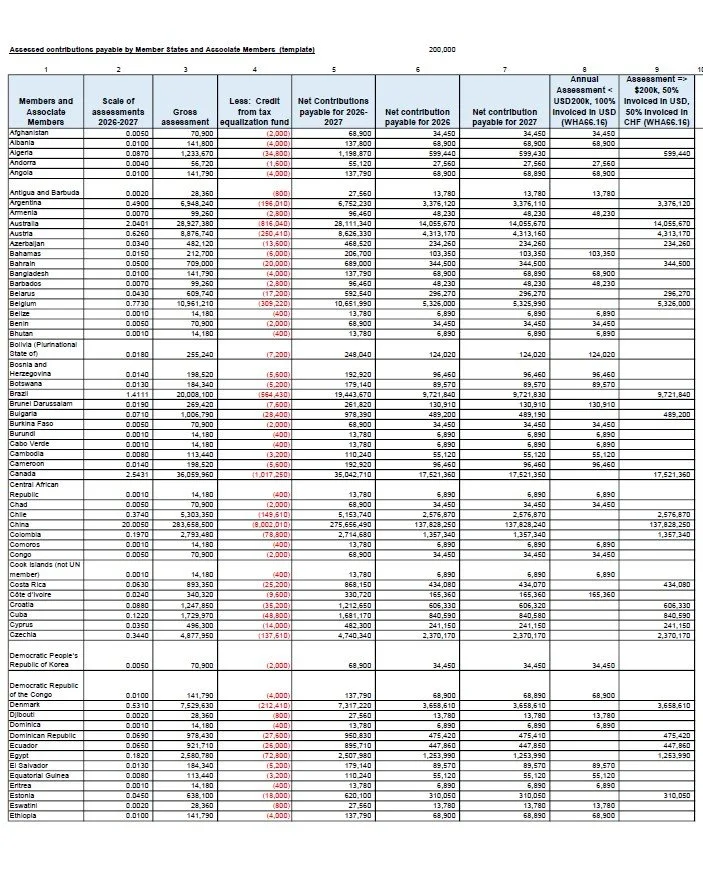
For tables with visible gridlines, use the lattice parser.
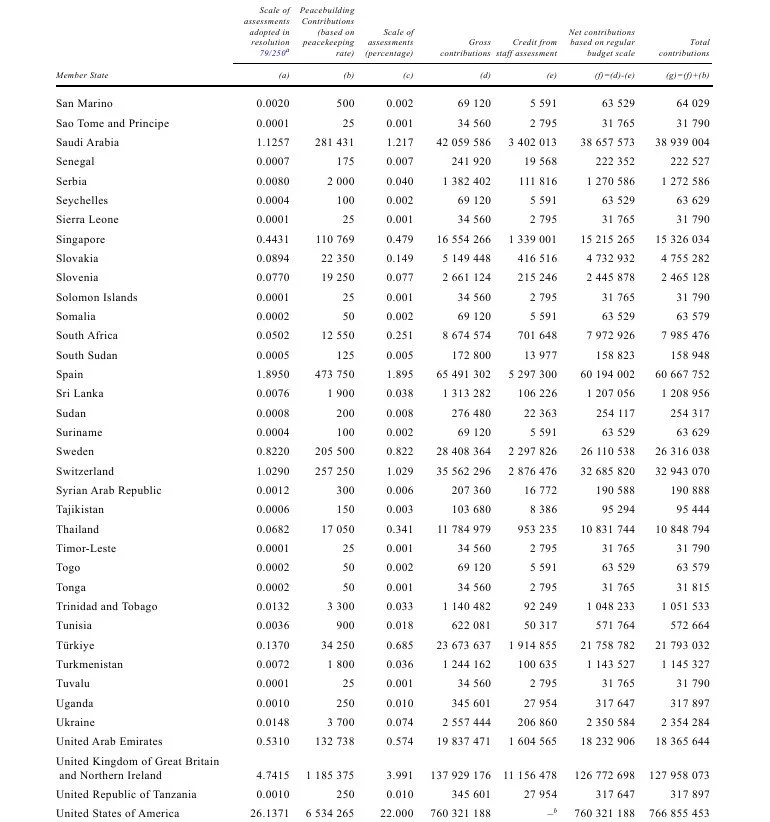
For tables without visible gridlines, the Stream parser may work better.
Lattice is the default mode. If your extraction results look misaligned or messy, switching between lattice and stream is often the first troubleshooting step.
Step-by-Step: Extracting Tables from a PDF
1. Import Camelot
First, import the library into your Python script:
import camelot
Without this line, Python will not recognize Camelot’s functions.
2. Read the PDF File
Use the read_pdf() function to detect tables:
tables = camelot.read_pdf("report.pdf")
The file must be in your working directory or referenced with a full file path.
The result — stored in tables — is a collection of all detected tables.
3. Check How Many Tables Were Found
print(len(tables))0means no tables were detected.1or more means Camelot successfully identified tables.
If no tables are found, confirm:
The PDF is text-based
You’re targeting the correct page
You’ve selected the appropriate flavor
4. Extract a Specific Table
Python uses zero-based indexing, so the first table is accessed with:
table = tables[0]

If multiple tables are detected:
tables[1] → second table
tables [2] → third table
Extract Tables from Specific Pages
By default, Camelot reads page 1. Most reports contain multiple pages, so specifying pages improves performance and accuracy.
Examples:
tables = camelot.read_pdf("report.pdf", pages="3")
tables = camelot.read_pdf("report.pdf", pages="1-5")
tables = camelot.read_pdf("report.pdf", pages="1,3,4")
The pages parameter must be passed as a string.
When working with long PDFs, always verify page numbering. Some documents include Roman numerals in front matter, which can shift page indexing.
Switching Between Lattice and Stream
If table columns are misaligned, try:
tables = camelot.read_pdf("report.pdf", flavor="stream")
Choosing the correct flavor can dramatically improve table detection accuracy.
Converting PDF Tables to a pandas DataFrame
Once Camelot detects a table, the next step is converting it into a pandas DataFrame for analysis.
Each table object contains a .df attribute:
df = table.df
At this point, your PDF table has been converted into structured tabular data that you can manipulate using pandas.
Validating and Cleaning the Data
After extraction, inspect the DataFrame:
print(df.head())
print(df.info())
Common issues include:
Column headers appearing as the first row of data
Numeric values stored as text
Commas or symbols preventing proper numeric conversion
You may need to:
Rename columns
Drop header rows
Convert data types using
pd.to_numeric()
This validation step is critical when performing financial or statistical analysis.
Combining Multiple Tables
If your PDF splits a large table across multiple pages, you can combine them:
import pandas as pd

dfs = [t.df for t in tables]
combined_df = pd.concat(dfs, ignore_index=True)
This is especially useful when extracting multi-page financial statements or government statistical reports.
Exporting the Extracted Table to CSV
After reviewing and cleaning your data, export it:
df.to_csv("output.csv", index=False)
The index=False argument prevents pandas from adding row numbers as a separate column.
You now have a structured dataset ready for analysis in Excel, Python, or other tools.
Limitations of Camelot
While Camelot is powerful, it has limitations:
It does not work on scanned PDFs (OCR required first).
Complex table layouts may require manual adjustments.
Extraction accuracy depends heavily on table formatting.
Some PDFs contain inconsistent spacing that confuses the Stream parser.
If extraction fails, verify:
The file path is correct
The PDF contains selectable text
The correct parsing flavor is used
The correct pages are specified
Final Thoughts
Extracting tables from a PDF using Python becomes straightforward once you understand the workflow:
Import Camelot
Read the PDF
Specify pages and parsing flavor
Access detected tables
Convert to a pandas DataFrame
Clean and validate the data
Export the results
Camelot handles the structural detection. Pandas provides the analytical power. Together, they form a reproducible, efficient workflow for converting static PDF tables into usable datasets.
For data analysts working with government reports, financial statements, or research publications, mastering PDF table extraction can save hours of manual work and dramatically reduce errors. You can find the Camelot documentation here.
Check out other articles in our Getting started with Python series…








Extracting structured data from PDFs can be frustrating. PDFs are designed for presentation, not data analysis. But with a few Python libraries and a bit of code, getting data from tables within a PDF can be a fairly smooth process. Learn how.